Tutorial: Create a Simple Syslog Server and Write to a File#
Use this tutorial when you want WinSyslog to receive syslog messages and store them in a local text file.
In this manual, input is the clearest plain-language concept, while the
configured object is a service. In the GUI, that specific input service is
named Syslog server.
Goal#
At the end of this procedure, WinSyslog will:
listen for incoming syslog messages
pass them through a ruleset
write matching messages to a file on disk
Prerequisites#
A writable target directory for log files
At least one ruleset for incoming messages
An input service that will be attached to that ruleset
Steps#
Create or choose a ruleset.
In the WinSyslog Configuration Client, create a ruleset for the messages you want to store.
If this is your first setup, you can also reuse the ruleset from Creating an Initial Configuration.
Add a Write to File action.
Inside that ruleset, add a Write to File action.
Open the file logging settings.
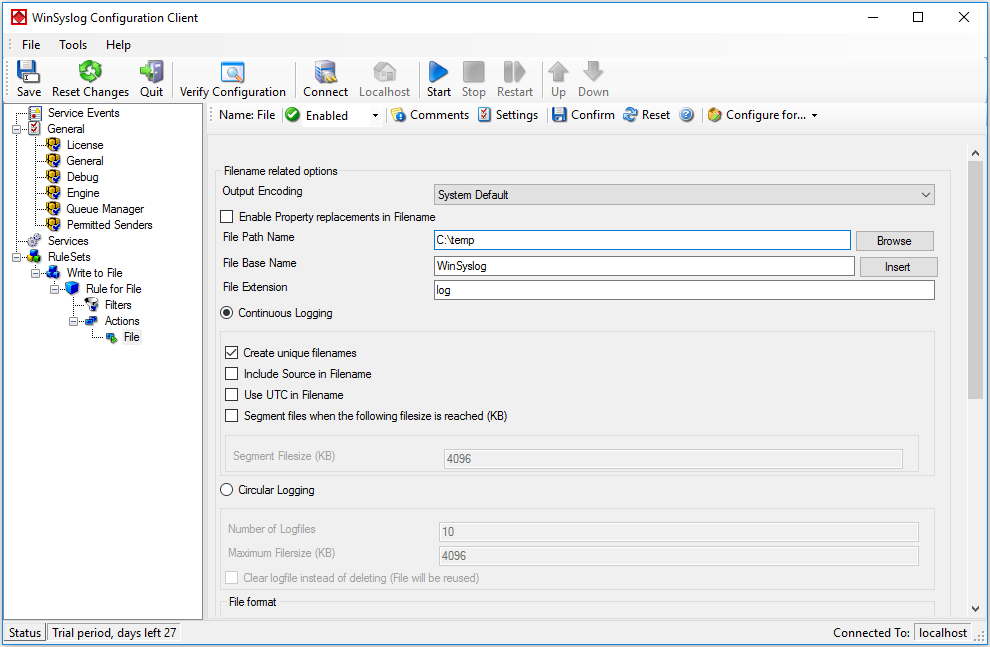
Configure the target file.
Set File Path Name to the directory where WinSyslog should write the files.
Set File Base Name to the logical file name prefix.
Keep the default extension unless you need something specific.
Decide how files should be created.
Use daily unique filenames if you want date-based rotation.
Use a continuous filename if another process expects one stable file name.
Enable Include Source in Filename only if you explicitly want separate files per sender.
Attach message intake to the ruleset.
Ensure at least one input service, for example a Syslog server service, is bound to the ruleset that contains the file action.
Save the configuration and restart the WinSyslog service if required.
Verification#
Send a test message with Tools -> Send Syslog Test Message.
Open the configured directory.
Confirm that WinSyslog created the expected log file.
Open the file with a tool that does not lock it aggressively, such as Notepad.
Next step#
If file logging works, continue with: