Why did my WinSyslog update report success when the files were not upgraded correctly?#
Question#
Why can an in-place WinSyslog update report success while the installed service, client, or selected features still contain files from the older release?
Answer#
This can happen when Windows Installer retains an incomplete feature state while processing a cross-generation update. The setup wizard can finish and report success even though a later maintenance operation still sees features as advertised, unavailable, or otherwise not fully installed. The product configuration is normally not deleted; the problem is that the expected program files were not refreshed.
Details#
This behavior has been confirmed for direct WinSyslog updates from the 16.x generation to the 18.x generation. Other direct source versions can show the same symptoms, including paths within the adjacent release generations. The source version alone does not prove that an update path is safe or affected.
The underlying mechanism is consistent with Windows Installer feature-state
handling. A newer setup package can be accepted as an update without changing
the installed product identity, but Windows Installer still evaluates the
feature and component state recorded for the previous installation. A change
between product generations can leave a feature only partially selected or
advertised. ADDLOCAL=ALL explicitly requests all features locally, while
REINSTALL=ALL only refreshes features that Windows Installer considers
installed. This is why a two-stage repair is useful for this symptom.
Look for this combination:
the setup wizard displays a successful completion page
the WinSyslog About dialog or file properties still show an older client or service version
Modify or Custom Setup shows an unexpected state such as
0 of 1 subfeatures selectedor0 KBa normal repair does not replace the older files
the installer requests a reboot because a service or file is still in use
- orphan:
Representative setup evidence
The screenshots below come from one affected setup run and are representative of the visual clues described in this article. Product names, component labels, and version numbers can differ in other product installations.
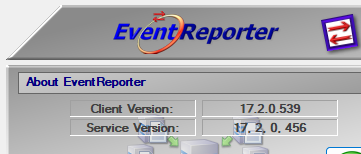
The installed product reports the older client and service versions before the update.#
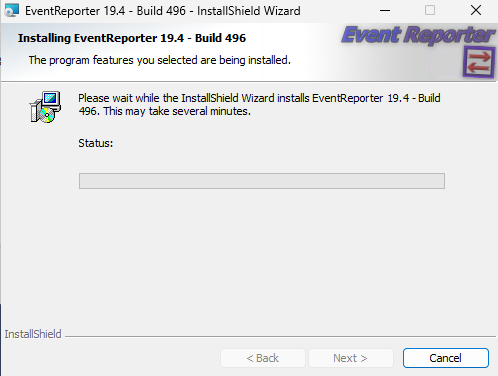
The setup wizard can display a normal installation-progress page.#
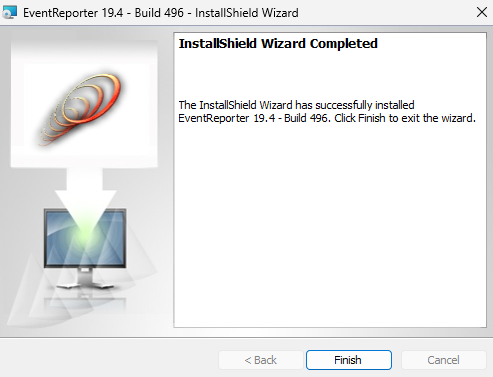
The wizard can report that the installation completed successfully.#
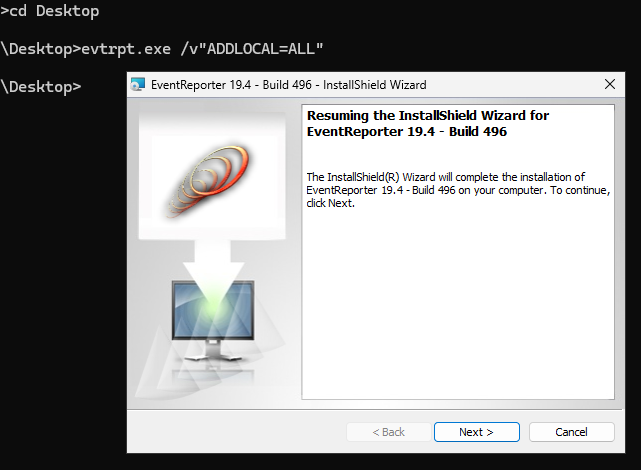
A later maintenance action can resume the InstallShield wizard.#
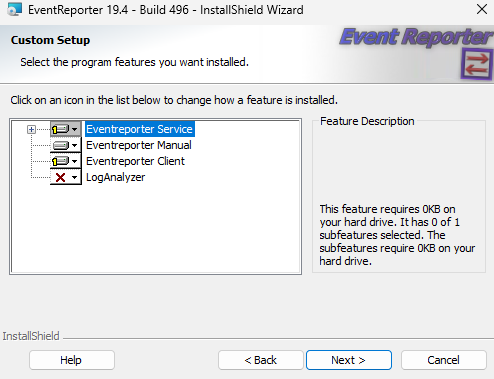
Custom Setup can show an unexpected feature state, such as zero selected subfeatures or zero required disk space.#
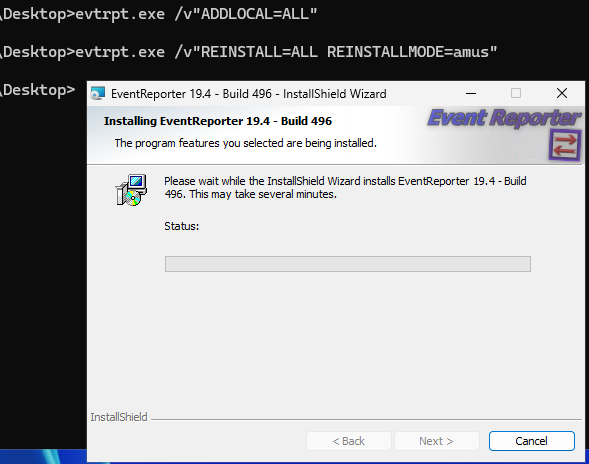
A second maintenance run can reinstall the selected product files.#
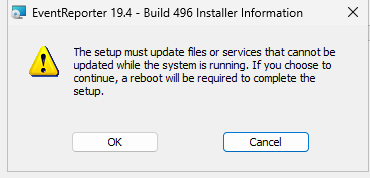
Files or services that remain in use can cause the installer to request a reboot.#
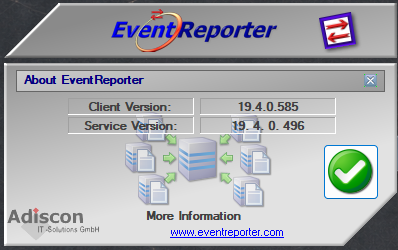
After a successful file refresh, the client and service report the newer versions.#
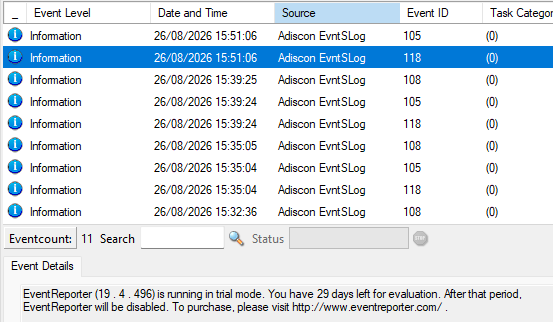
Verify the running product after the installer finishes.#
Action path#
Export or back up the WinSyslog configuration before changing the installation.
Close the WinSyslog Configuration Client and stop the WinSyslog service manually before each setup run. Stopping the service first can avoid a reboot request caused by locked service files, but it cannot avoid every reboot request.
If a staged update is practical, use a tested intermediate release, such as 16.x to 17.x to 18.x, and verify the client, service, features, and configuration after each hop. Do not assume that an adjacent version path is safe without verification.
If the installation remains inconsistent, use the clean-install procedure for WinSyslog after exporting the configuration.
If you are already working from the folder that contains the installer, run the following as two separate elevated setup runs. Substitute
wnsyslogjp.exewhen using the Japanese setup.First run: mark every setup feature as locally installed.
wnsyslog.exe /v"ADDLOCAL=ALL /L*v %TEMP%\winsyslog-addlocal.log"
Second run: force a refresh of the installed files and registration data.
wnsyslog.exe /v"REINSTALL=ALL REINSTALLMODE=amus /L*v %TEMP%\winsyslog-reinstall.log"
Let the wizard finish after each command. Do not combine the two property sets into one command for this recovery path. If the first command opens a resume page, continue through the wizard. After the second run, check Modify or Custom Setup, then verify the About dialog and the file versions before starting the service.